Always at hand
It stays in the system tray and can start with Windows. One click and you see all four services at once.
 AI Usage Tray
For Windows · Free
See how much of Claude, ChatGPT, Gemini and Grok you've used without opening each site. AI Usage Tray lives in the system tray and warns you before you run out.
For Windows 10 (1809 or later) and Windows 11 · x64
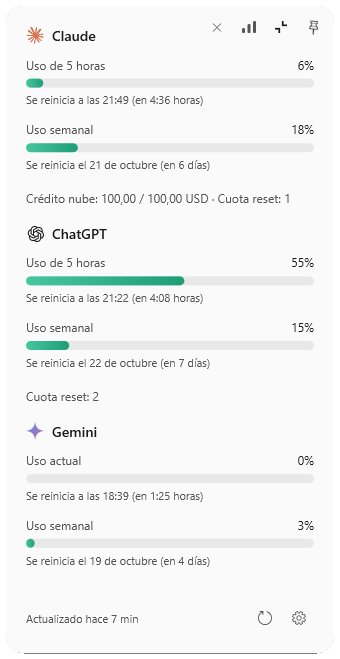
Real app panel (Spanish UI) · the desktop is illustrative
AI Usage Tray
Each service shows its own limits, just like its usage page does: the 5-hour window, weekly usage or current usage, depending on the service. The bar fills with what you've used, and underneath you see when it goes back to zero.
If you prefer, flip it around: have the bars show what you have left instead of what you've used.
Illustrative example of the panel's bars
It stays in the system tray and can start with Windows. One click and you see all four services at once.
Choose what alerts you and how: a Windows notification, Telegram or both — at 80%, when it runs out and when it resets.
Connect your own Telegram bot and send /uso to get your summary from anywhere, as long as your PC is on.
Inside the app
The panel for everyday use, stats to see the trend and settings to make it yours. The screenshots are real, with the app in Spanish — it's fully available in English too.
01 / Panel
The floating panel puts all your services in a single column. It refreshes on its own every few minutes, and you can pin it so it stays open.
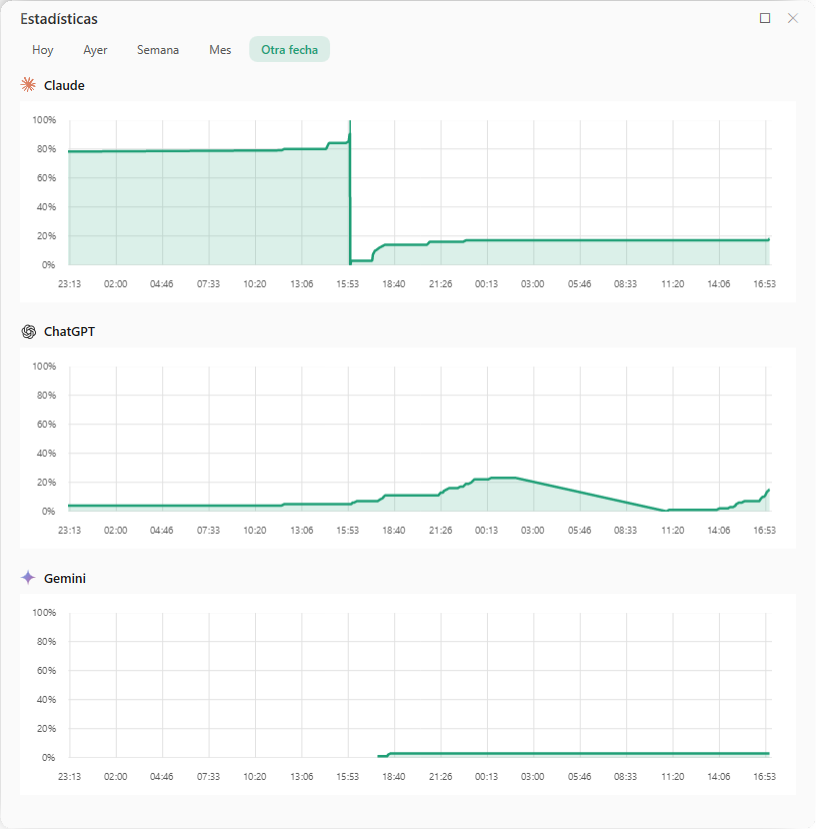
02 / Stats
The app keeps every usage reading on your device and plots it in one chart per service. You'll see when you push hardest and how everything drops to zero at each reset.
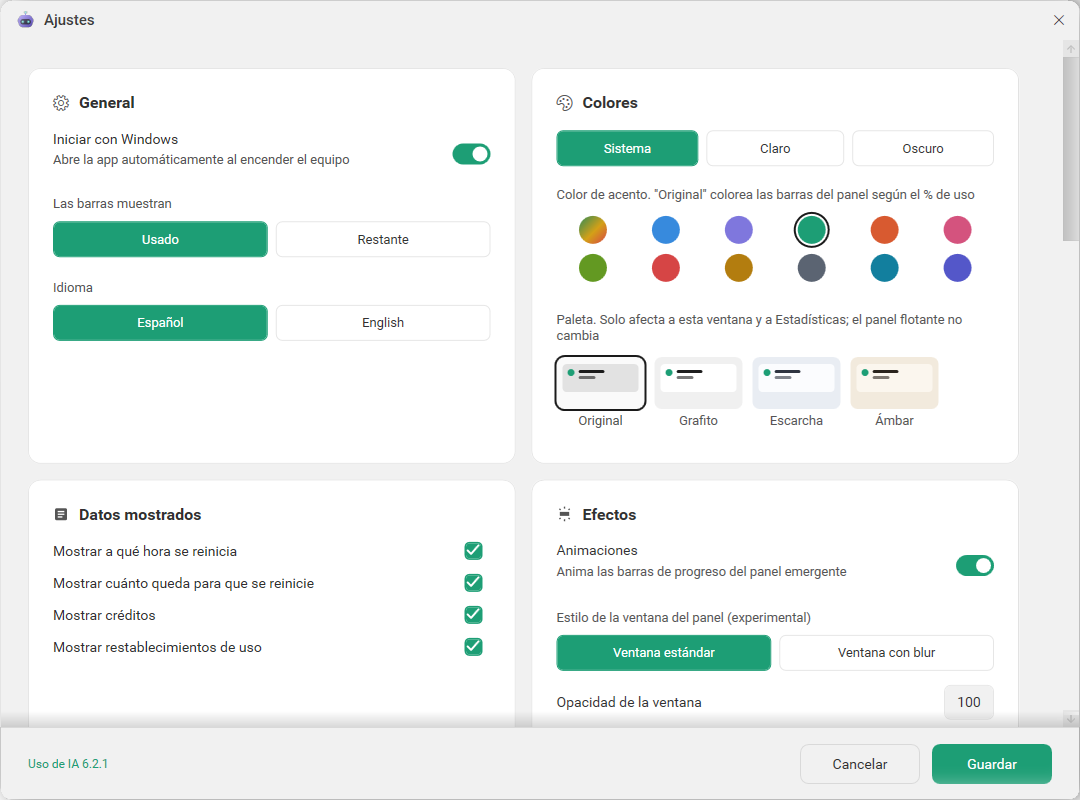
03 / Settings
Light, dark or system theme, twelve accent colors and four palettes. Decide which details show up in the panel and whether bars count used or remaining.
Free, with no new accounts or API keys. Updates arrive automatically through Microsoft Store.
Open each service in the app's isolated window and sign in with your account, like in any browser. Only the ones you use.
The app checks your usage every few minutes and alerts you when it matters. Glance at the tray whenever you like.
No. The app reads your own account's usage — the same you see on each service's usage page. If your plan has no usage limits to show, the app tells you so.
No. Sign in only to the ones you use; the rest don't show up in the panel. You can hide specific bars in Settings.
No. It only reads usage percentages, limits and reset dates. It never accesses the content of your chats with any service.
It's the Microsoft Edge engine the app uses to open each service in an isolated window. It comes preinstalled on Windows 11 and most Windows 10 installs; if it's missing, the app tells you and links to Microsoft's official page.
It's optional. You create your own bot, paste its token and your chat ID into Settings, and from then on you get the alerts you choose and can send /uso to ask for your summary. The token is stored encrypted on your device.
Yes. On the welcome screen, choose to see how the app works: it starts in demo mode with sample data, and you can explore the whole interface.
No. AI Usage Tray is a personal project by an independent developer, not affiliated with any of those companies.
Each service opens in an isolated browser window inside the app. You sign in yourself, with your own account, and cookies are stored in the private folder Windows sets aside for the app.
From Settings → My data you can delete everything — sessions, history, settings and logs — and the app is back to a fresh install. Uninstalling it removes everything too.
No servers of ours, no analytics and no telemetry. Your usage history, settings and sessions stay on your device. Only Telegram receives anything, and only if you turn it on.
Read the full privacy policy
Your Claude, ChatGPT, Gemini and Grok usage, always one click away.
Get it from Microsoft Store